
How to Animate a Picture Into a Clean, Looping GIF
 ReelyArtTutorials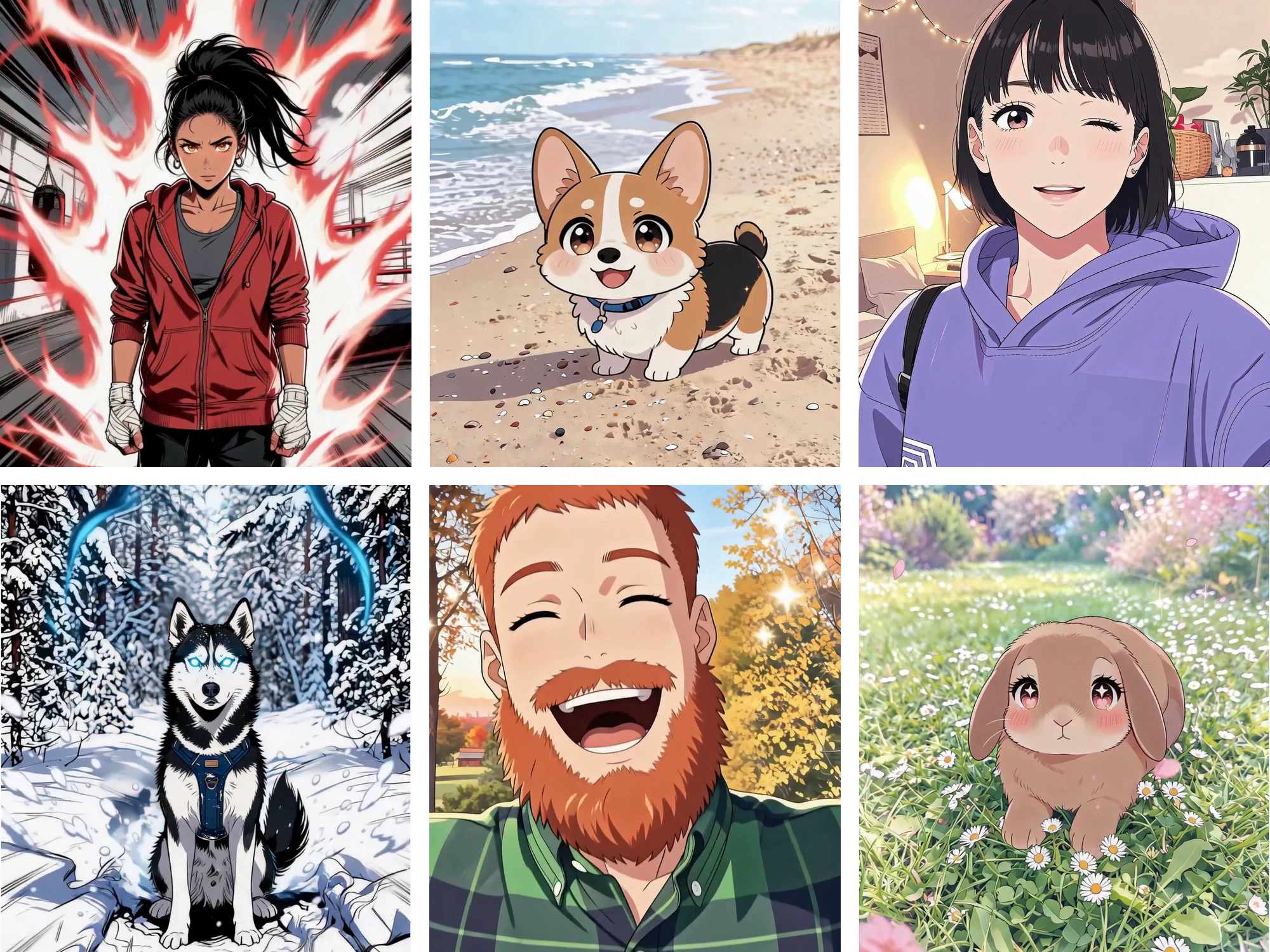
Key takeaways
- A clean loop comes from small motion, a locked camera and an action that ends where it began.
- Describe effects as already running, so nothing has to switch on or off at the loop point.
- Keep logos and text rigid, and let light, particles or the background do the moving.
- Seedance 2.0 Mini (6 credits) is for trying ideas; Pro (10 credits at 480p) is the standard loop.
On this page
A still picture turns into a good GIF when the motion is small, the camera stays put, and the last frame lands where the first one started. Get those three right and the loop plays forever without a visible jump.
Everything here was made with GIF Studio, the GIF tool inside Content Studio. You upload one image, it writes a motion for it, and Seedance, ByteDance's video model, renders a 4 to 8 second clip that comes back as a GIF and an MP4.
See the whole flow

What makes a loop look clean
The motion presets in GIF Studio are written to loop, and they share a few habits worth copying into your own prompts.
- Start in the middle of the effect. The presets describe a neon sign as "already fully lit" and an aura as "already blazing". An effect that switches on during the clip has to switch off again before the end, and that is exactly where loops jump.
- Lock the camera. Nearly every preset asks for a static camera. If the camera drifts, the first and last frames cannot match.
- Pick one action that comes back. A blink, a hop, a turn of exactly 360 degrees. The action should end in the pose it started from, and the presets say so in as many words.
- Keep logos and text rigid. The logo presets open by asking for the logo to be preserved exactly, then let light, particles or the background do the moving. Letters that move tend to warp.
- Clear the particles before the end. Confetti, sparks and embers should appear and fade within the clip, so the frame is empty again at the loop point.
Three preset prompts you can borrow
These are the prompts behind three presets, exactly as they run. Paste one into the motion field and swap in the details of your own image.
Live Wallpaper, for anime characters and pets:
Show the uploaded character as a Japanese anime character with clean line art, cel shading and large expressive eyes, keeping the same face, hairstyle, hair color, skin tone, glasses and outfit colors. A calm anime idle loop for a wallpaper: the character breathes softly and blinks once, hair strands and clothes sway in a light breeze, small light particles drift through the air and the background clouds move slowly. Static camera and framing, seamless loop ending exactly on the first frame.
Neon Sign, for logos:
Preserve the uploaded logo shape, proportions, colors and readable details exactly. Render it as a premium neon tube sign on a dark brick wall, already fully lit. Add only a subtle rhythmic flicker and soft wall glow. Static locked camera. Seamless loop: all light intensity and framing return exactly to the opening frame.
Spinning Coin, for items and artwork:
Preserve the uploaded item or artwork exactly on the coin face, with no redesign, warping or missing details. Mint it into a premium thick golden game coin and rotate exactly 360 degrees at constant speed. Use one controlled highlight sweep and a few sparkles that fully fade. Static camera, dark clean background, seamless loop ending on the exact starting angle.
The presets are grouped into Character, Logo, Gaming and Anime tabs, and you can also skip them entirely: the AI proposes a motion for every image you upload, and for most pictures it is a good starting point.
Choosing a picture that animates well
The model animates what it can see, so the picture does a lot of the work. A single subject with a visible face gives a blink or a smile something to hold on to, and some empty space around the subject gives hair, an aura or falling petals room to move. Busy group shots and subjects cropped at the edge of the frame usually give weaker loops. If you are starting from a selfie or a pet photo, you can also turn it into an anime drawing first with the anime filter, then animate the drawing.
Which model, and how long
| Model | 480p | 720p | 1080p | Use it for |
|---|---|---|---|---|
| Seedance 2.0 Mini | 6 | 12 | – | Trying an idea cheaply |
| Seedance 2.0 Pro | 10 | 25 | 50 | The standard loop, up to full HD |
| Seedance 2.5 | 12 | 28 | – | The newest model, on paid plans |
Prices are in credits for a 4-second clip. The length slider goes up to 8 seconds and the price scales with it, but four seconds is usually the better choice: a longer GIF has to drop frames or colors to stay under the 8 MB limit most chat apps enforce. Resolutions above 480p and clips longer than 4 seconds are on the paid plans, and the 10 credits a new account starts with cover a first 480p GIF on Mini or Pro.
GIF or MP4
Every run returns both. Use the GIF where loops autoplay, in Discord and most chat apps. The MP4 is sharper and carries generated audio, unless you switch sound off before generating. For more finished examples, see the AI GIF generator.